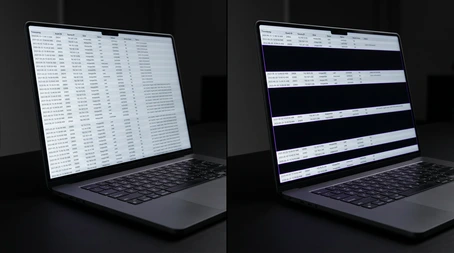
Microsoft Sentinel workspaces tend to hold tables that were never meant for a wide audience - HR investigation logs, insider threat cases, AI prompt histories, sign-in records full of PII - or security data in general. But cloud admins, MSSP operators, and other high-privilege users can read every one of them, even when the data has nothing to do with their role. Until now, there was nothing you could do about it: a high-level role on a subscription frequently meant full data access to Sentinel, and there was no way to pull specific tables back out of their reach.
Protected Tables, now in public preview, is the missing carve-out. Mark a table as ‘Protected’ and it vanishes for everyone without an explicit grant, no matter what other roles they hold.
In this post, I’ll cover how ‘Protected Tables’ work, how to configure them, and how to make the related ABAC conditions work.
The Problem with Existing Access Control
- Azure’s built-in RBAC supports ABAC conditions that let you scope access down to individual tables inside a Log Analytics workspace - or even specific records within a table. But Azure RBAC is strictly additive. A condition on one role assignment cannot subtract from what another role already grants. So if a user holds Contributor or Sentinel Reader - roles that carry unrestricted read access to every table - no ABAC condition can narrow that back down. The role that makes Sentinel fully usable is the same one that makes table-level restrictions moot.
- Sentinel Scoping (URBAC): Once you enable Sentinel Scoping on an instance, all existing access is effectively revoked - traditional Azure roles stop granting permissions in the Defender portal, and every user must be explicitly scoped back in. There is no god-mode read access anymore. However, Scoping only governs the Defender portal; the same Sentinel instance remains accessible through the Azure portal, where traditional roles still apply.
Sentinel Scoping only limits access in the Defender Portal. If you have access to Sentinel in the Azure Portal, you will be able to access it without a problem.
Protected Tables fills that gap: by marking a table as Protected, you revoke access for every user who doesn’t hold an explicit ‘Protected table reader’ grant - regardless of their other roles.
Protected Tables works alongside Sentinel Scoping; a Protected table cannot be read by default, not even by a scoped user in the Defender Portal.
How Protected Tables Work
Open your Log Analytics workspace and head to the Tables page - there’s a new column: Protection level. Every table starts out as General, which means exactly what you’re used to: the standard permission model applies, and anybody who could read the table still can.
 Table Protection settings
Switching a table to Protected adds a second gate on top of the existing permission model. A user still needs the usual permissions to reach the table, but those alone are no longer enough; the user must also hold a specific grant for protected data before access is allowed. This applies regardless of the user’s other roles.
Without that grant, a query returns zero rows - no error, no warnings. The data simply doesn’t exist for that user.
Granting Access
There are two ways to hand out that grant, and I tested both of them. I got some surprising results - potentially bugs in the preview feature:
-
Built-in role: Privileged Monitoring Data Reader: A purpose-built role for this feature. It acts purely as a second gate - assign it to a user without existing permissions and they can see the workspace but NOT query anything. The user still needs their usual access configured; this role layers the protected-table grant on top. The ABAC condition is baked into the role definition, so no manual configuration is needed.
-
Custom role with ABAC conditions: Build a custom role around the Microsoft.OperationalInsights/workspaces/tables/data/read DataAction and attach a condition targeting the protectionLevel attribute. Since per-table filtering is unreliable (details below), a custom role is mainly useful if you want to bundle protected-table access with additional permissions or ABAC conditions - or, as I did during testing, to pair the bare minimum data-read permission with an existing higher-level role.
To grant a user who already has Sentinel access the ability to read Protected tables, assign this role (conditions below):
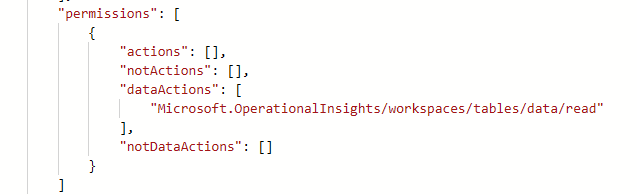 In this scenario the user already has Sentinel access through a higher-level role. The custom role doesn’t replace anything - it only adds the data-read permission needed to reach Protected tables.
Configuring Protected Table Access
Granting protected-table access through a custom role comes down to one thing: an ABAC condition on the role assignment that targets the table’s protectionLevel attribute. Straightforward in theory - but in practice, the behavior doesn’t always match what Microsoft documents, and Azure won’t tell you when something is wrong. You’ll just get zero rows and no error.
My test setup: a user holding Microsoft Sentinel Contributor, and two tables - StorageBlobLogs and SentinelHealth - switched to Protected. Protection kicked in immediately: queries against both tables came back empty.
1. No ABAC Condition at All
The simplest test: assign a role that grants Microsoft.OperationalInsights/workspaces/tables/data/read with no ABAC condition attached (see the role permissions above).
Result: The user can read all protected tables. This contradicts Microsoft’s documentation, which states that the protectionLevel attribute must be configured in an ABAC condition. In practice, the gate opens without any condition at all.
2. Condition Targeting Protected Only
The natural first attempt - an ABAC condition that matches only protected tables:
(
 (
  !(ActionMatches{'Microsoft.OperationalInsights/workspaces/tables/data/read'})
 )
 OR
 (
  @Resource[Microsoft.OperationalInsights/workspaces/tables:protectionLevel]
    ForAllOfAnyValues:StringEquals {'Protected'}
 )
)Result: does not work. The user can read General tables but none of the Protected ones - as if the condition doesn’t exist. This directly contradicts Microsoft’s documentation, which shows this as a valid condition.
3. Condition Targeting Protected and General
Include both protection levels in the condition:
(
 (
  !(ActionMatches{'Microsoft.OperationalInsights/workspaces/tables/data/read'})
 )
 OR
 (
  @Resource[Microsoft.OperationalInsights/workspaces/tables:protectionLevel]
    ForAllOfAnyValues:StringEquals {'Protected', 'General'}
 )
)
Result: works. The user can read all tables - General and Protected. Adding General has no security impact: it doesn’t widen access beyond what the user’s existing roles already provide. It just unblocks the condition.
4. Condition Targeting Protected + One Specific Table
Narrow the grant to a single protected table by name:
(
 (
  !(ActionMatches{'Microsoft.OperationalInsights/workspaces/tables/data/read'})
 )
 OR
 (
  @Resource[Microsoft.OperationalInsights/workspaces/tables:protectionLevel]
    ForAllOfAnyValues:StringEquals {'Protected'}
  AND
  @Resource[Microsoft.OperationalInsights/workspaces/tables:name]
    StringEquals 'StorageBlobLogs'
 )
)
Result: works. The user can read all General tables (these are not gated) and the one specified Protected table. Notably, General is not needed in the condition here, but it can be added.
5. Condition Targeting Protected + Two Specific Tables
Extend the condition to two table names - either via ForAllOfAnyValues:StringEquals with multiple values or via an OR clause:
Result: does not work. The user can still read all General tables, but none of the Protected ones. This contradicts what Microsoft documents on their Learn page.
Summary
| Condition setup | Protected tables accessible? | Matches Microsoft docs? |
|---|---|---|
| No ABAC condition | Yes - all protected tables | No - docs say condition is required |
protectionLevel = Protected |
No | No - docs say this should work |
protectionLevel = Protected, General |
Yes - all protected tables | Yes |
protectionLevel = Protected + 1 table name |
Yes - that table only | Yes |
protectionLevel = Protected + 2 table names |
No | No - docs say this should work |
Recommendation
Three out of five scenarios contradict the documentation. Until Microsoft addresses these gaps, I’d recommend keeping it simple. Handle it as a binary gate.
- ‘Protect’ tables to hide them from general viewers
- Use
{'Protected', 'General'}to grant people who should see protected tables access to all of them - The single-table condition works today, but I’d treat it as a side effect rather than a guaranteed behavior
Additional Notes
- Lighthouse and MSSP scenarios: Since Privileged Monitoring Data Reader is a built-in role, it works with Azure Lighthouse. You can grant one service provider access to protected tables while keeping them hidden from others or from your internal admins.
- Works alongside existing access controls: Protected Tables can be combined with other Azure roles and Sentinel Scoping. Even with broad Sentinel access, users cannot see protected table data without an explicit ‘protected table reader’ permission.
- Applies retroactively: Protection operates on table-level metadata. It covers all data in the table, including data ingested before protection was enabled.
- Data lake is not covered: In the Azure portal, protection works as expected - queries to a Protected table return zero rows without an explicit grant, even for Auxiliary (data lake) tables. However, during testing I was able to query the same protected table directly through the data lake in Defender XDR, bypassing the protection entirely. (Bug, or intended behavior?)
- Bugs and preview: This feature is in public preview, and rough edges are expected. I’ve been hitting permission and data-lake bugs across the broader platform lately, and I know some of the buggy features work fine in other tenants. Some of these issues above may be part of a broader pattern rather than anything specific to Protected Tables. I’ve reported these issues to Microsoft alongside other bugs I’ve encountered with URBAC and data lake access, and I’ll update this post if I hear back.
- DataActionsOnly mode: There is also a net new mode to limit access to the whole workspace. If interested, take a look at it.
Protected Tables solves a problem that’s been nagging Sentinel admins since day one: broad roles leaking read access to sensitive logs. The configuration has rough edges but the core feature works. If you have tables that not everyone should see, this is worth setting up now.